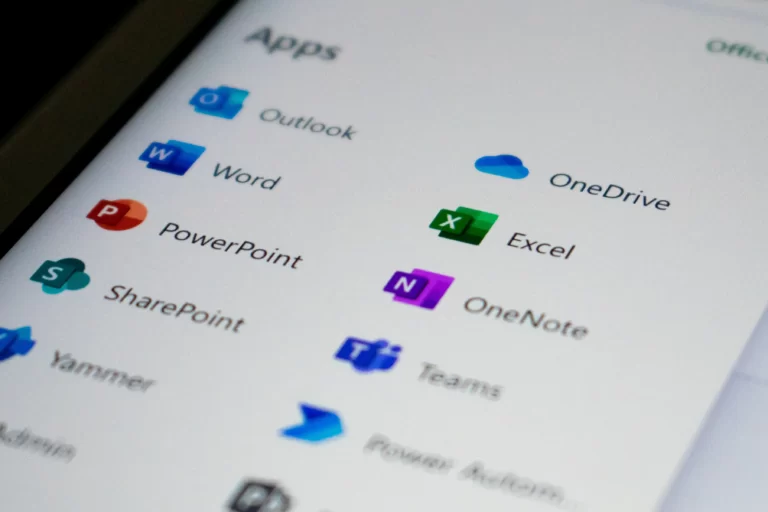
At some point, your boss or IT team probably mentioned the company is “moving to the cloud” or already has. Maybe they said something about migrating files to OneDrive, switching to Microsoft 365, or “decommissioning the server in the cupboard.”
If you nodded along while quietly wondering what any of it actually meant for your day-to-day work — you’re not alone. Most cloud explainers are written for IT managers and business owners. They talk about scalability and TCO and disaster recovery. None of which tells you whether your files are safe, where your stuff actually lives now, or what changes when you sit down at your desk on Monday.
This one’s for you.
What “the cloud” actually is
The cloud isn’t really a cloud. It’s just somebody else’s computer — in a big secure data centre somewhere, running 24/7, looked after by a company like Microsoft, Google, or Amazon.
Instead of your business owning a server (a special computer, often locked in a back room or cupboard) that stores all your files and runs your business apps, you rent space on those big shared computers and access everything through the internet.
That’s it. That’s the cloud.
When people say “we’re moving to the cloud,” they usually mean some combination of:
- Your files are moving from a local server (or your computer’s hard drive) to OneDrive or SharePoint
- Your email is moving from an in-house mail server to Microsoft 365 (Exchange Online)
- Apps you used to install on each computer are now used through a web browser instead
- Your team chat moves to Microsoft Teams or similar
- Backups, antivirus, and security tools all run from cloud services rather than something installed locally


Most Melbourne businesses have already done some or all of this. If you’ve ever opened a Word doc directly from Outlook without saving it to your desktop first, congratulations — you’ve been using the cloud.
Why your business is doing it
You don’t need to memorise all the reasons, but it helps to know the main ones so you understand why some things might change:
Less downtime. When the office server died, everyone stopped working. Cloud services have backup systems running 24/7, so a hardware failure rarely affects you.
Working from anywhere. Your files and apps live on the internet, not on the office network. So you can work from home, from a client’s office, or from a café — same files, same setup, same logins.
Better security. Microsoft, Google and friends spend billions on security. They can do things a small business server simply can’t — like detecting weird login attempts from overseas, or stopping ransomware before it spreads.
Easier collaboration. Multiple people can edit the same Word doc at the same time. No more emailing “FINAL_v3_actually-final.docx” back and forth.
Lower long-term costs. No more buying expensive servers every five years, paying to power and cool them, and panicking when they die unexpectedly.
What changes for you on day one
The big stuff to know:
1. Save files differently
The old way was often “save it to the C: drive” or “save it to the shared S: drive.” The new way is “save it to OneDrive (for personal work files) or SharePoint (for shared team files).”
Files in OneDrive and SharePoint look just like files on your computer. They sit in folders, they have the same File Explorer feel. The difference is they’re automatically backed up to the cloud, accessible from any device you sign into, and you can share them with a link instead of an attachment.
The most common mistake: saving important work to your desktop or local C: drive. That’s not backed up. If your laptop dies, that work is gone. Always save to OneDrive or SharePoint.
2. Sign in more often (and use MFA)
Cloud services need you to prove who you are, because they have to assume any login from anywhere could be an attacker. That’s why you’ll see Multi-Factor Authentication (MFA) — a second check, usually an app on your phone, that confirms it’s really you.
Yes, it’s an extra step. Yes, it occasionally happens at the worst possible moment. But it’s the single biggest reason cloud accounts are harder to break into than the old way of doing things.
3. Some things are now in a browser
Things you used to open from a desktop icon — like webmail, your CRM, or even Word and Excel — might now open in a browser tab. Most of the time you can still use the desktop apps if you prefer, but the browser versions work too, and they update automatically without nagging you.
4. Your stuff syncs
When you save a file in OneDrive, it appears on your laptop, your phone, your home computer (if signed in), and the web — almost instantly. This is brilliant when it works (and it usually does). The thing to watch for: if you’re offline and editing, and someone else is also editing the same file, you might get a “merge conflict” when you reconnect. Just save your version with a different name to be safe, then ask IT to sort it out.
A few common worries (and the truth)
“Is my work safe in the cloud?” Generally, yes — safer than on a single office server. Microsoft’s data centres have multiple backups, redundant power, biometric access controls, and security teams that would make most banks jealous. Your bigger risk is your own login getting hacked, which is exactly why MFA matters.
“What if the internet goes down?” Most cloud apps have an offline mode — Word, Excel, Outlook all keep working without internet, then sync when you reconnect. Teams chat and meetings need a connection, but documents don’t. Worth knowing for those occasional NBN moments.
“Can my boss see everything I do?” They have access to company files, but they’re not watching every click. Cloud services do log activity (which is a good thing — it’s how attacks get detected), but those logs are reviewed only when there’s a problem. Treat your work computer like a work computer and you’ve got nothing to worry about.
“Where actually is my data?” Microsoft 365 data for Australian businesses is typically stored in Australian data centres (often Sydney or Melbourne). If your industry has specific data location requirements — health, legal, government — IT will have made sure you’re set up correctly.
What you can do to help
You don’t need to do anything technical. But a few habits make the migration smoother — and your work safer:
- Save everything to OneDrive or SharePoint. Not your desktop, not your downloads folder.
- Don’t ignore MFA prompts — and never approve one you didn’t trigger.
- Use the search bar instead of hunting for files. Cloud search is genuinely good and finds things across email, files, and chats at once.
- Speak up when something feels weird. A new login prompt out of nowhere, an unexpected “share” notification, a file that’s suddenly read-only — these are the kinds of things IT wants to know about.
The takeaway
Moving to the cloud sounds dramatic, but for most staff the changes are small and mostly positive: faster access, better collaboration, less “the server’s down again.” The hardest part is breaking the old habits — like saving to your desktop or emailing attachments instead of sharing links. Once those click into place, the cloud just becomes the way work works, and you barely notice it’s there.
Which is exactly the point.
Thinking about moving your business to the cloud, or want to get more out of your existing setup? Talk to the Key I.T. team — we help Melbourne businesses migrate, secure, and run cloud services that just work. Learn more at Microsoft 365 Service Melbourne – Email migration – Key IT