Phishing emails used to be easy to spot. Bad spelling, dodgy logos, a Nigerian prince needing your help moving $4 million — you’d see them coming a mile away.
Those days are gone. Modern phishing emails are slick. They use real company logos, perfect grammar, and they’re often sent from email addresses that look almost identical to ones you trust. Some are now written by AI, which means they sound natural and convincing. And they’re working — phishing remains the number one way attackers break into Australian businesses, year after year.
The good news? You don’t need fancy software to defend against them. You just need to know what to look for. Once you’ve trained your eye, spotting a phish takes about three seconds.
What phishing actually is
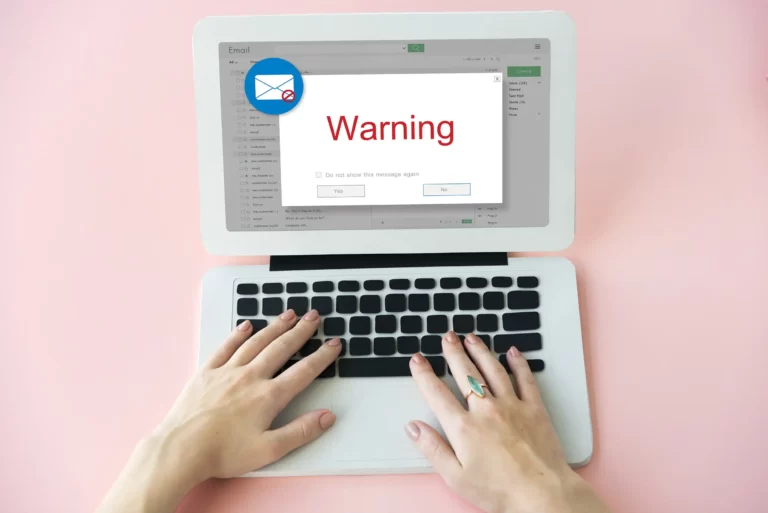
Phishing is when someone sends you a message — usually an email, but sometimes a text or a chat message — pretending to be someone you trust. A bank, a delivery company, a colleague, your boss, Microsoft. The goal is to trick you into doing one of three things:
- Clicking a link that takes you to a fake login page, where they steal your password
- Opening an attachment that installs malware on your computer
- Doing something like transferring money, sharing data, or buying gift cards
If they pull it off, the consequences range from annoying to catastrophic. A single stolen password can give attackers access to your inbox, your files, your client data, and sometimes your company’s bank account.
What “local” actually means in IT support
Plenty of providers claim to be “Melbourne-based” but their nearest engineer is in Dandenong, two hours away in peak traffic. So when you’re evaluating IT support, here’s what to ask:
Where are your engineers actually based? Not the head office — the people who’d come on-site. If you’re in Greensborough, an engineer based in the northern suburbs can be at your door in well under an hour. One based in Frankston, Werribee, or interstate is a different story entirely.
What’s your typical on-site response time? A good local provider should commit to specific timeframes. “Within an hour” for emergencies in their service area is a reasonable benchmark. Vague answers like “as soon as we can” are usually a sign they’re stretched thin or covering too wide an area.
Have you worked with businesses in my industry, in my area? Knowledge of local context matters. A medical practice in Heidelberg has different IT needs than a manufacturer in Thomastown — and a provider who’s worked with similar businesses nearby will already know the common pain points, the right vendors, and the local quirks (like which suburbs have decent NBN and which still struggle).
The 5-second sniff test
Before you click anything in any email, run through these five quick checks. They take about as long as reading the subject line.
1. Were you expecting it?
This is the single most powerful question you can ask. Did you order a parcel? Then a “delivery failed” email makes sense. Didn’t order anything? Then “your package is on hold” is suspicious, full stop.
The same applies to invoices, password reset emails, MFA prompts, “shared document” notifications — if it arrives out of the blue, treat it as suspicious until proven otherwise.
2. Check the sender’s actual email address
Don’t just look at the display name. Anyone can put “Microsoft Support” or “ANZ Bank” as their display name. Click or hover on the name to see the actual email address.
Real ones look like or . Fake ones might be or . The trick is in the domain — the part after the @ sign. If it doesn’t match the company’s real website, it’s a fake.
Watch out for tiny tricks too: paypa1.com (with a “1” instead of an “l”), or mlcrosoft.com (with an “rn” that looks like an “m”). These are deliberately designed to fool a quick glance.
3. Hover before you click
On a computer, hover your mouse over any link without clicking. The actual destination URL pops up at the bottom of your screen. If the email says it’s from Australia Post but the link goes to auspost-tracking.xyz or some random string of numbers, don’t click.
On a phone, press and hold the link to see where it goes (don’t tap it).
If a link looks scrambled, shortened (bit.ly, tinyurl), or just doesn’t match the company name, that’s a red flag.
4. Watch for urgency and pressure
Phishers love creating panic. “Your account will be deactivated in 24 hours!” “Unusual login detected — verify now!” “Final notice before legal action!”
Real companies don’t operate like this. Banks don’t email you demanding immediate action with a single suspicious link. The ATO doesn’t threaten arrest by email. Microsoft doesn’t shut down your account if you don’t click within an hour.
If an email is making your heart race and pushing you to act right now, slow down. That’s exactly what they want you to ignore.
5. Does the request itself make sense?
Even if the email looks perfect, ask yourself: would this person actually ask for this, in this way?
Your CEO probably wouldn’t email you asking to urgently buy $500 in gift cards. Your bank wouldn’t ask you to confirm your password by replying to an email. The IT team wouldn’t ask for your MFA code over chat. If the request feels off, it doesn’t matter how legitimate the email looks — it’s a phish.
A few specific traps to know about
The “boss” email. You get a message that looks like it’s from your manager or CEO: “Hey, are you at your desk? I need a favour.” If you reply, the next message asks you to buy gift cards, transfer money, or share confidential info. Always verify these requests through a different channel — walk over, call them, send a Teams message. Never trust the email alone.
The fake invoice. A PDF or Word doc arrives, supposedly from a supplier you’ve never heard of (or one you have). Opening it triggers malware, or the file asks you to “Enable Content” to view it. If you weren’t expecting an invoice, don’t open it. Forward it to IT or accounts to verify.
The Microsoft 365 login page. You click a link to view a “shared document” and land on what looks exactly like the Microsoft login screen. You enter your password. Now an attacker has it. Always check the URL in your browser before typing your password — real Microsoft login pages are at login.microsoftonline.com, not microsoft-secure-login.com or anywhere else.
The MFA bombing attack. Your phone keeps buzzing with MFA approval requests you didn’t trigger. The hope is that you’ll eventually tap “Approve” just to make it stop. Don’t. Deny every prompt and tell IT immediately — someone has your password and is actively trying to break in.
What to do when you spot one
The most important rule: don’t reply, don’t click, don’t forward to colleagues (except IT). Forwarding a phish around the office spreads the risk.
Instead:
- Report it. Most email systems have a “Report Phishing” button — use it. If yours doesn’t, forward the email to IT as an attachment (this preserves the technical headers they need to investigate).
- Delete it after reporting, so you don’t accidentally click later.
- If you already clicked or entered your password, tell IT straight away. The faster they know, the faster they can change your password, kill any active sessions, and check whether anything was accessed. There’s no shame in this — phishing emails are designed to fool people. The only real mistake is staying quiet.
You’re the most important security tool
Antivirus software, firewalls, email filters — they all do their job and they catch a huge amount. But none of them are perfect, and the cleverest phishing emails are designed specifically to slip past automated defences. That’s why the final line of defence is always the person reading the email.
Five seconds of suspicion can save your business from a five-figure recovery bill. So next time something feels even slightly off in your inbox, trust your gut, run the sniff test, and when in doubt — ask IT.
Worried about phishing in your business? Talk to the Key I.T. team about email security, staff training, and the practical safeguards that actually keep Melbourne businesses safe. Learn more at Security & Access Control systems – Key I.T. Melbourne